

Signing in and opening your practice
Custodio Legal
Video tutorials in Spanish
These walkthroughs show the complete flow in the Spanish interface.
Entrar y guardar el idioma de tu cuenta
Open on YouTube: Entrar y guardar el idioma de tu cuentaActivar el segundo factor de acceso
Open on YouTube: Activar el segundo factor de accesoEntrar con tu autenticador
Open on YouTube: Entrar con tu autenticadorRecuperar el acceso y cambiar de celular
Open on YouTube: Recuperar el acceso y cambiar de celularConsulta tu proceso sin registrarte
Open on YouTube: Consulta tu proceso sin registrartePrueba Custodio en dos minutos
Open on YouTube: Prueba Custodio en dos minutosCreate your account, sign in once you have one, and open the practice your matters will belong to.
Before you start
- An email address you can access.
- If someone invited you to their practice, the link from the invitation email.
Looking up a court file without an account
You do not need an account to try the court lookup. Custodio’s guides for the countries where it is open —today Uruguay and Costa Rica— carry a search box inside the page itself: you type the file number, clear the security check below the field, and choose Look it up.
The query goes out to the court portal right then, so it takes a few seconds and the screen says so while it waits. We ask for no email, no name and no data about you, and the number you type travels in the body of the request, not in the page’s address.
What comes back is what the portal publishes today: the court and its department or province, the state of the file, the caption, and the last action with its type and date. In the caption, the parties’ names are reduced to their initials —“F. R. N. S.A. v. T. C. S.R.L.”—: enough to recognize your own file, not enough to build a list of somebody else’s defendants.
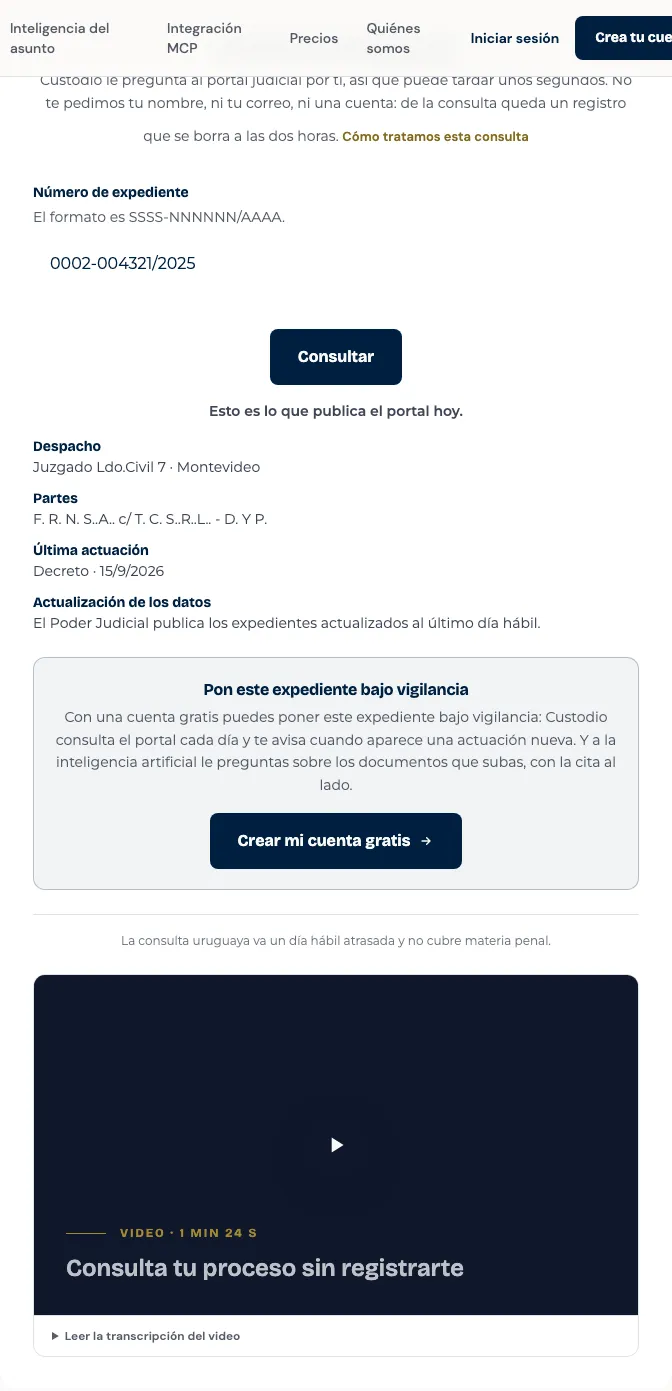
Coverage is not the same in both countries, and the page says so next to the result:
- Uruguay runs one business day behind and does not cover criminal matters.
- Costa Rica reads the live case file in the Sistema de Gestión en Línea: it tells you what the last action was and when, never the text of the ruling. The Judiciary does not publish how far behind it runs.
Below the result sits “I’ll tell you when it changes”, which leads to registration. If you create your account from there, the file you just looked up is queried again —in full this time, inside your practice— as soon as you open it, and you never retype the number.
If the search answers “we couldn’t look it up right now”, that answer is deliberately terse: try again in a while.
Step by step
-
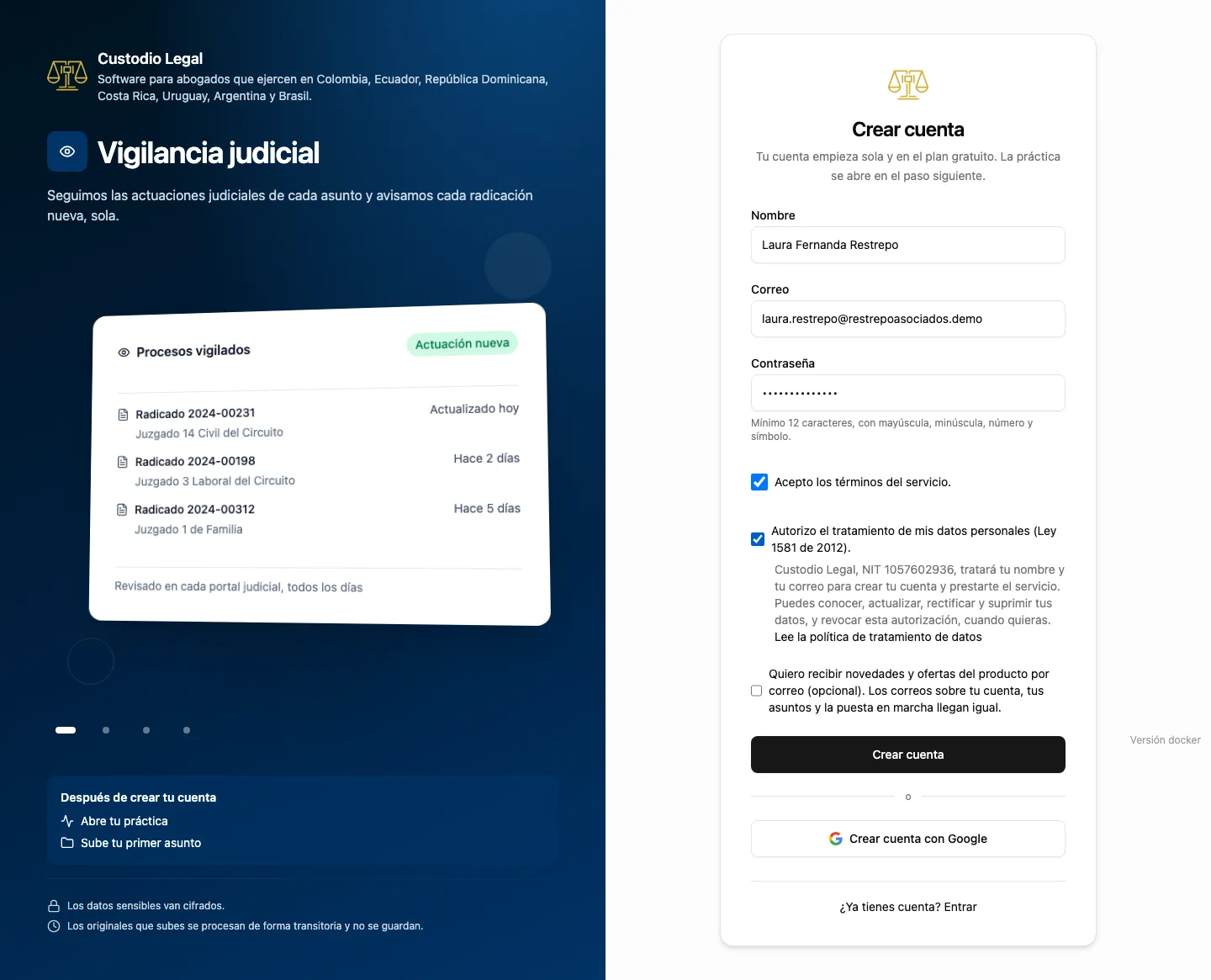
Go to Create an account. Enter your name, your email and a password of at least 12 characters, with an uppercase letter, a lowercase letter, a number and a symbol.
-
Check both required boxes: agreeing to the terms of service and authorizing the processing of your personal data. They are two separate authorizations, and both are needed. The third one —product news and offers by email— is optional and you can leave it blank: emails about your account, your matters and getting started arrive all the same.
-
Confirm with Create account.
-
Open the email we sent you and click the link to confirm your address. If it didn’t arrive, ask us to resend it from the same screen.
-
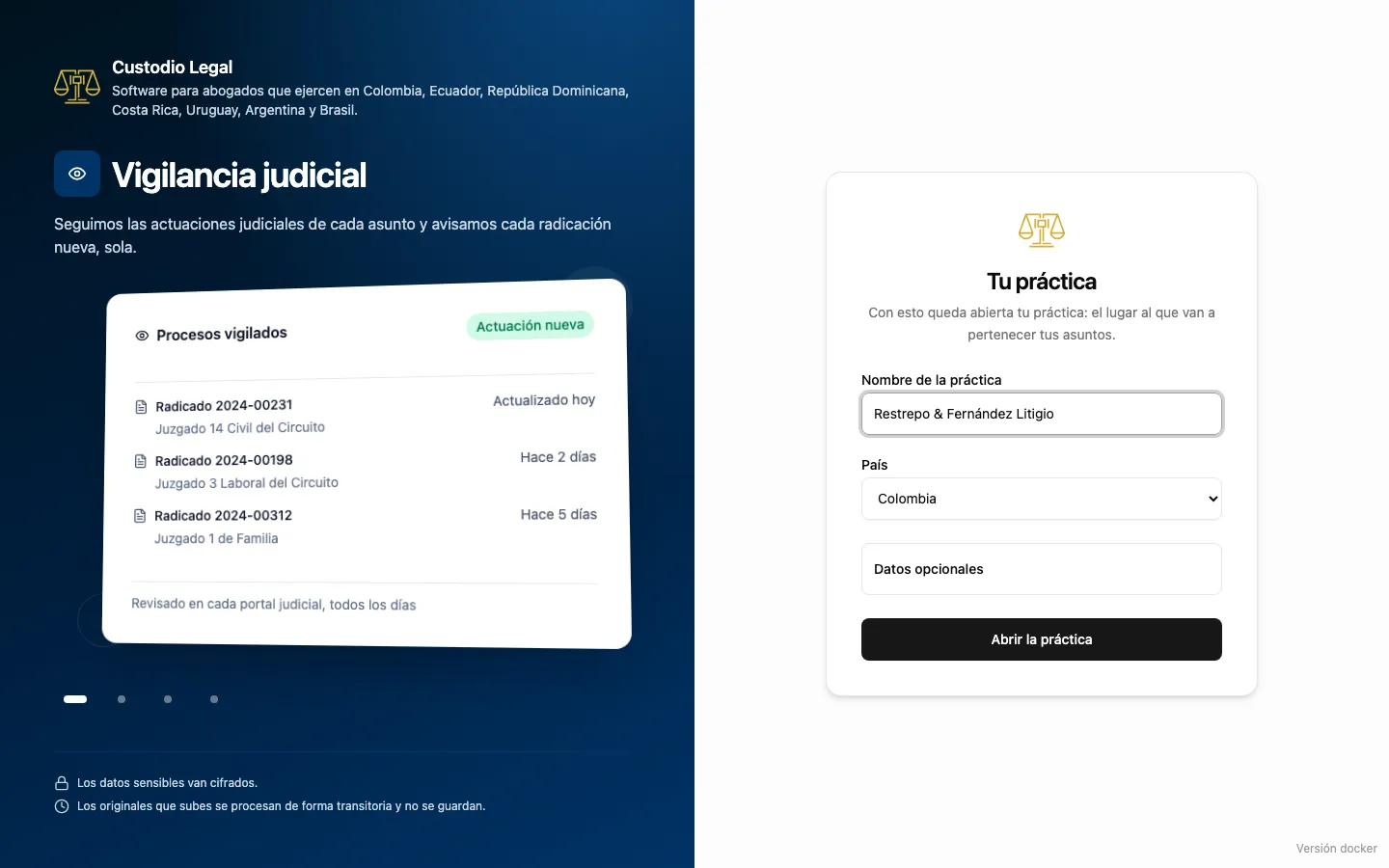
With your email confirmed you land on Your practice, and it has only two required fields: the practice name, already filled in with your account’s, and the country, already picked from what your browser signals. You can change both. The time zone appears only if your country has more than one. City, tax identification number and bar registration number are folded under Optional details: you can leave them blank and fill them in later, in Settings. The areas you work in are declared there too.
-
Confirm with Open the practice and you go straight to your desk. Your practice is born with an example matter, already worked through, so you can see how Custodio works before uploading anything of your own — it is explained in Creating a matter.
When do we ask for the second factor? Not when you open the practice. Custodio asks you to set up an authenticator when your practice starts holding something that factor protects: the first document of your own in a matter, the second member of the practice, or the first invitation you send — whichever comes first. The example matter does not count: it is our content, not a client’s. The full walkthrough is under Second factor for sign-in.
Already had an account? Sign in with your email and password, or with Google. If you have a second factor, enter your authenticator code next. If you forgot your password, request a reset link: the screen does not reveal whether the email has an account. Resetting your password does not remove your second factor. If you lost your phone, follow access recovery.
Were you invited to a practice? Open the invitation email’s link. If you do not have an account yet, complete registration and both authorizations shown in the form. If you already have an account, sign in with the invited email and complete your second factor when asked: the invitation does not change your password. Keep the same tab to return to the invitation and confirm Accept and sign in. You do not need to open another practice. A different account cannot accept on your behalf.
How you know it worked
You land on Home, your practice’s dashboard. The practice name appears in your account menu at the bottom of the sidebar.
If something goes wrong
| What you see | What happened | What to do |
|---|---|---|
| “We couldn’t create your account” | That email already has an account, or a field does not meet the form requirements | Read the message beside the field; if you already have an account, sign in instead of creating a new one |
| The confirmation link doesn’t work | It expired, or it was already used | Ask for the email to be resent from the confirmation screen |
| “This invitation no longer works” | The invitation expired, was already used, or the practice withdrew it | Ask whoever invited you to send a new one |
| You can’t open a second practice | Each account works with a single practice | If you need another practice, write to support from Support |
| Your account gets locked when signing in | You typed the wrong password several times in a row | Wait the time the message tells you, or recover your password |
| “Wait for the security check to finish” in the public search | The anti-bot check has not finished yet | Wait a moment and send the query again: what you typed is kept |