

Your team
Custodio Legal
Video tutorials in Spanish
These walkthroughs show the complete flow in the Spanish interface.
Who works at your practice, who to invite, and how to share out the matters between everyone.
Before you start
- Only the owner of the practice can invite, remove, or transfer ownership.
- You need a per-seat team plan. On an individual plan, Team is absent from the sidebar; opening a saved link explains why it is unavailable.
Step by step
-
Tap Team in the sidebar.
-
Check how many seats your plan has, how many are occupied, and how many are free.
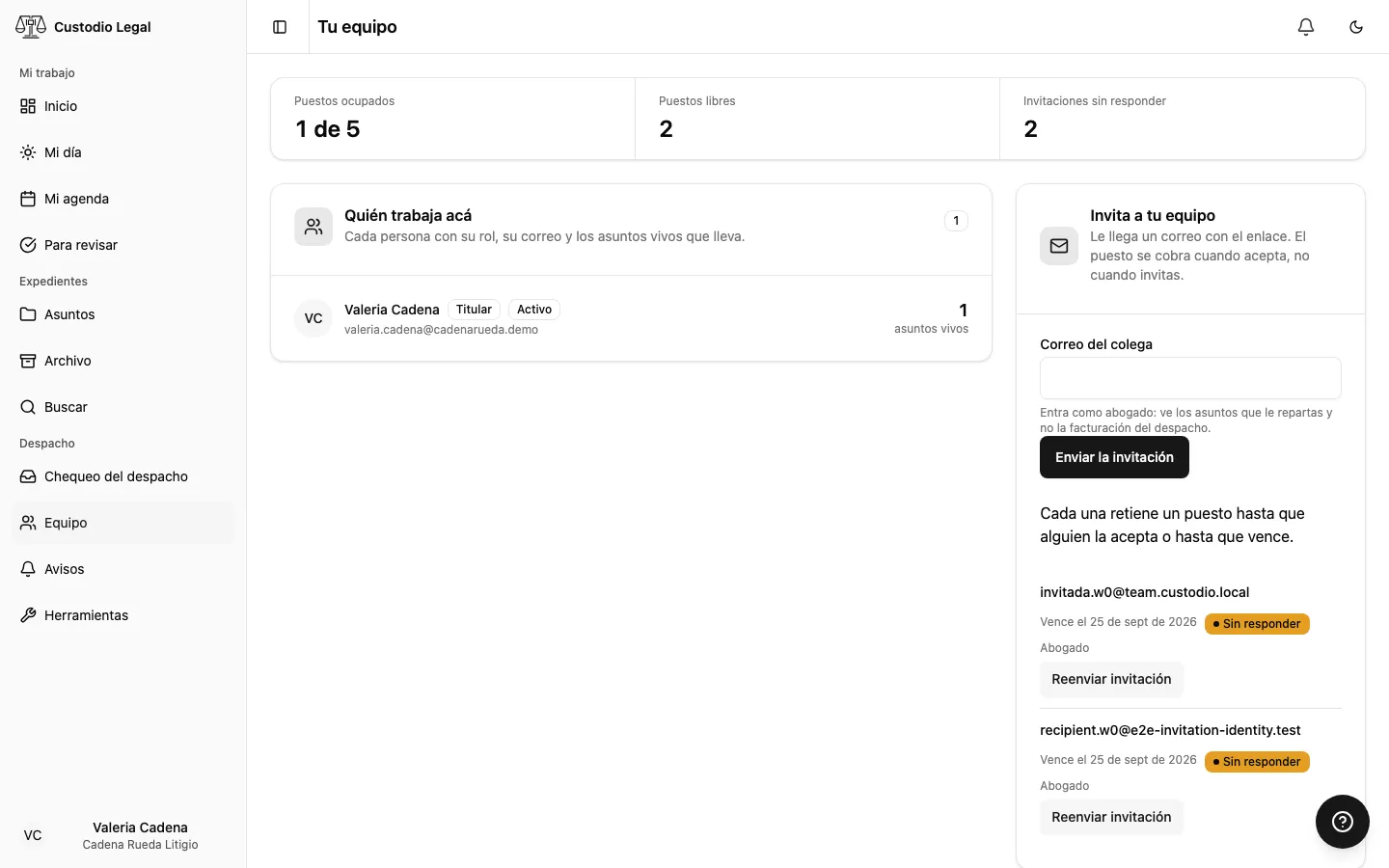
The screenshot shows a practice on the Team plan, the only plan that opens this screen: the seats, the roster, and the pending invitation belong to that plan. If you practise on your own, your practice is you and you do not need this chapter.
-
Type your colleague’s email and send the invitation — they always join as a lawyer, with whatever matters you share out to them.
-
Check the pending invitation row and its expiry. An invitation reserves a seat until accepted or expired; sending it does not make the person an active team member.
-
If they don’t respond, resend the invitation from their row.
-
Under the matter-assignment section, start with Unassigned and choose the person who will handle it. The number beside each name is their current workload. The row leaves that filter; switch to All to verify its assignee.
-
To remove a person or transfer ownership, open the management menu on their row and read the confirmation. Reassign their active matters before removing them: removal is blocked while they still carry any. Transferring ownership changes your role to lawyer and removes your owner-only controls.
When your colleague accepts
The recipient follows the invitation walkthrough. Someone with an existing account signs in with their own email and password or Google, completes MFA if enabled, and returns to the invitation in the same tab to accept. The invitation does not replace their password. Someone without an account completes the registration shown by the link. Sending or opening the link alone does not make someone a member.
If you transfer ownership to someone without a second factor, they will need to set it up before continuing with the practice.
How you know it worked
After inviting, the email appears under sent invitations as pending. Once accepted, the person appears in the roster with their role and workload. After assigning a matter, All shows who handles it; the assignee remains after reloading.
If something goes wrong
| What you see | What happened | What to do |
|---|---|---|
| “Your plan has a single seat” | Your plan doesn’t include a team | Upgrade your plan from your practice and your plan |
| “No seats are free” | All seats are occupied or invited | Wait for an invitation to expire, or buy more seats |
| You can’t transfer ownership | Only the owner can transfer it | Ask the owner to transfer it |