

Creating a matter
Custodio Legal
Video tutorials in Spanish
These walkthroughs show the complete flow in the Spanish interface.
Crear y encontrar un asunto extrajudicial
Open on YouTube: Crear y encontrar un asunto extrajudicialIncorporar y volver a encontrar un caso histórico
Open on YouTube: Incorporar y volver a encontrar un caso históricoTraer un asunto por radicado y revisar antes de crear
Open on YouTube: Traer un asunto por radicado y revisar antes de crearRevisar una lista de radicados y ponerla en carga
Open on YouTube: Revisar una lista de radicados y ponerla en cargaPrueba Custodio en dos minutos
Open on YouTube: Prueba Custodio en dos minutosThere are two ways to open a matter, and both end up in the same file.
Before you start
- Your practice needs available quota on its plan: an open matter uses it, one on hold or closed does not.
Step by step
- From «Matters», click «New matter».
- Choose one of the two paths: bring in a matter you already have, or create a new one by hand.

- If you choose «Bring in a matter you already have», type the number and click «Look up».
- Wait while Custodio asks the judicial source: it can take a couple of minutes, and you can leave the screen open.
- Review what the source answered — the court, the parties and the actions it already has — before confirming. Also choose the legal domain, its branch, and the responsible practice member. They start empty because the portal’s free text does not decide your practice’s internal classification.

- Confirm to create the matter with that data already loaded. The button is enabled after you choose all three active options. If the source doesn’t answer or the number doesn’t show up, you can continue by hand with the same number.
- If you choose «Create a new one», say whether the matter is judicial or
extrajudicial. Neither is selected for you, and kind-specific fields only
appear after you choose one. Both require a description:
- For a judicial matter, select its legal domain, branch and responsible practice member. The title and filing number are optional.
- For an extrajudicial matter, enter a title and select the service type. The objective and expected deliverable are optional; the filing number is not shown because it only belongs to judicial matters. Options must be active. Changing the domain clears the branch, so choose it again. No classification or responsible person is selected for you.

- Tap «Create the matter» to save it. Documents are uploaded afterwards, from the matter itself — see Documents and facts.
- To bring in a whole list, open «Import» from «Matters». Review and confirm the load as explained below; acceptance does not mean it has finished.
- If it’s an old file you already closed on paper, add it as a historical case from the Archive: it’s born closed and doesn’t use quota.
The example matter
Your practice is born with a matter you did not create. It is called the example matter and it carries a banner saying so in its own header: “This matter is an example”.
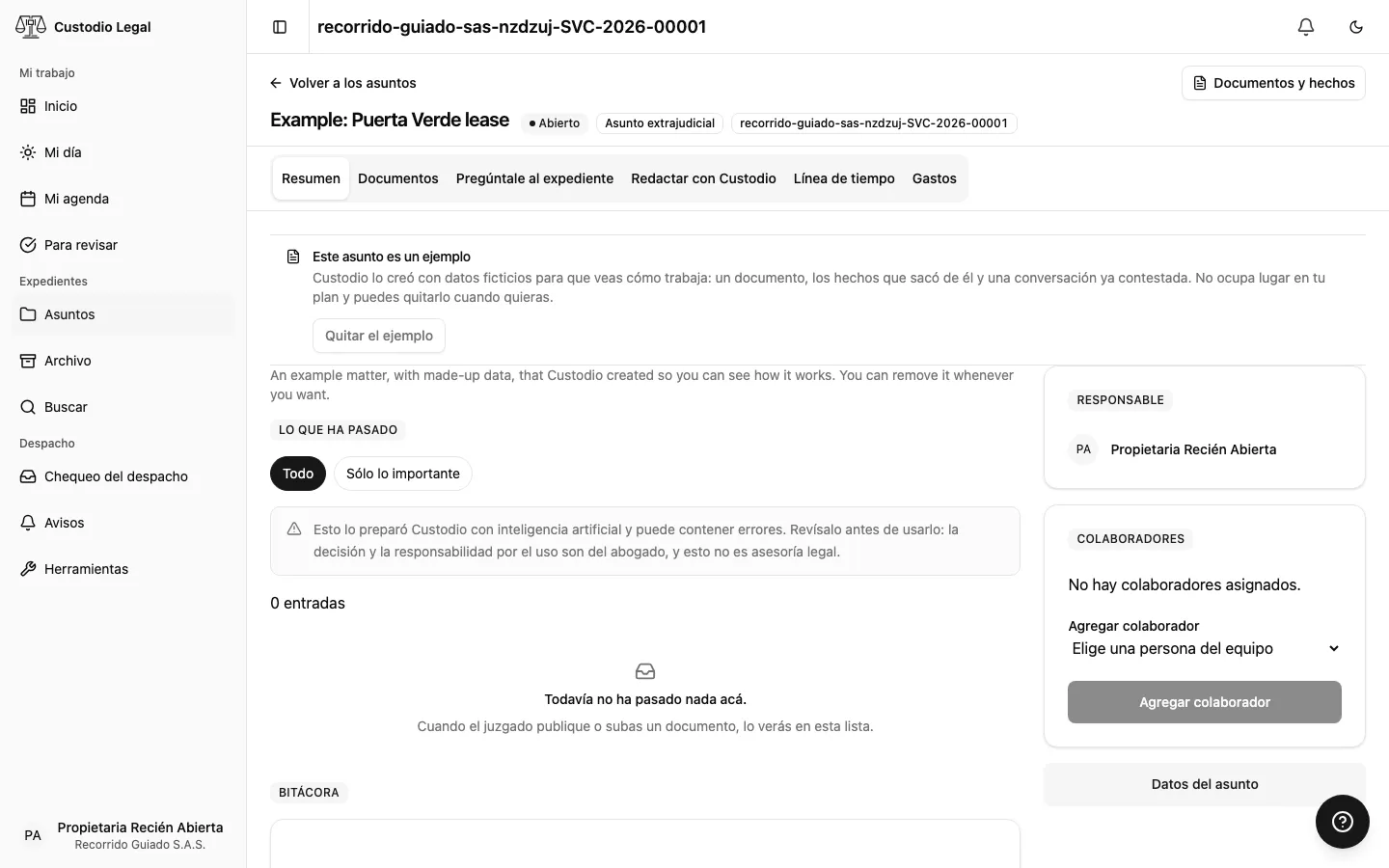
It is our content, with made-up data, and it is there so you can see how Custodio works before uploading anything of a client’s: it brings a lease agreement, the facts the AI read out of that text with the fragment that supports each one, and a conversation already answered, with its citations. The city and the amount are written in your country’s own.
What is worth knowing about it:
- It uses no quota from your plan. It does not count as an open matter.
- It is not watched. It is extrajudicial and has no filing number, so no court portal is ever queried for it and it produces no deadlines or alerts.
- It spent no AI. The facts and the answers are written, not generated: they take nothing from your token quota.
- It does not count for the second factor. The example’s document is not a client’s document, so it does not trigger the enrolment your own documents do (see Signing in and opening your practice).
How to remove it
Open the example matter. In the banner at the top choose Remove the example; the same button comes back asking for confirmation, because the matter and everything hanging from it —the document, the facts and the conversation— are deleted and this cannot be undone. Confirm it and you return to the matter list, without it. It is not left in the archive or among deleted matters.
You can also leave it there as long as you like: it gets in no counter’s way.
Finding a client’s cases by name
If you don’t have the list of filing numbers — which is normal on day one — start here. It sits above the filing-number field, on the same import screen.
- Type the person’s name or the company’s business name, as the court names it, and pick which of the two it is. At least six letters: a very short criterion brings half the country and the portal refuses it.
- Click «Search the portal» and wait. Custodio asks the judicial source and lists the cases with their filing number, court office, parties and the date of the last action.
- Tick the ones you want. Cases your practice already watches are flagged and cannot be ticked: you already have them.
- Click «Import the N ticked». The filing numbers drop into the field below and follow the usual path: preview and confirm. Searching does not use your plan quota; importing does.
- If there is more than one page, «Bring the next page» is another query to the portal. That is why it is a button and not infinite scroll.
Two answers worth telling apart: «no cases for that party» means the portal found nothing under that name — check the spelling — and «the criterion brings too many» means you need to be more specific: the full name, or the exact business name.
This search exists where the country’s portal allows it. In Colombia you search by name and by business name, not by national ID or tax number: the portal does not index by document. In Ecuador it is not available yet. In the Dominican Republic it is: the Poder Judicial’s portal indexes by name, by national ID and -no other portal does this- by representing lawyer. Costa Rica is registered and not offered yet; when it opens, its search by party will be the Archivo Judicial one, which is historical: it returns case files already transferred to the archive, not the state of live proceedings.
Reviewing a filing-number import
- Paste one number per line, provide the single-column file offered by the screen, or bring the ones you ticked in the search by name. Do not use the advanced template for a simple list.
- Click «See what will happen». This preview creates no matters: it separates new numbers, duplicates in the list, cases the practice already tracks, invalid numbers and entries over the plan limit.
- Use «Change the list» to correct it and preview again. Read any judicial-query allowance notice: a load may span several allowance windows rather than finish immediately.
- Click «Confirm and bring» with the number of matters you intend to add.
- Keep the progress link. Each row has its own status; open its matter when the link appears. Correct a filing number if the row requests it, and read the reason before retrying a failed load that offers a retry.
The advanced Excel template is a different path for information a portal cannot fill in, including matters without filing numbers and historical cases. It is not equivalent to pasting a simple list; follow its own instructions.
How you know it worked
The new matter file opens, with its matter number in the header.
For an import, also review every row’s result. An accepted load or a progress bar that is still running does not confirm all matters were created or synced.
If something goes wrong
| What you see | What happened | What to do |
|---|---|---|
| The number doesn’t show up in the source | The case isn’t in the portal, or the number has a typo | Check it, or continue by hand |
| «You’re already tracking that case» | Your practice already has a matter with that number | Open the existing matter instead of creating a duplicate |
| The source doesn’t answer | The judicial portal is slow or down | Wait and try again, or continue by hand |
| No quota for a new matter | Your practice reached its plan’s limit of open matters | Close a matter, or press «See plans» next to the notice to upgrade |
| «Create the matter» is disabled | A required field is missing or options are still loading | Complete the fields for the selected kind; if loading fails, use «Try again» |
| The filing number is valid but a catalog is still loading | Custodio read the number but does not have names for every segment yet | You can still look it up: the code is preserved and is not marked invalid |
| Active options are missing | No classification, responsible members or service types are available | Ask the practice owner for help with configuration or contact support |
By country
Colombia uses a filing number (radicado); Ecuador uses a process number; the Dominican Republic uses a Número Único de Caso (NUC), which is national and keeps its dashes; Costa Rica uses its case-file number, which carries the year, the sequential number, the judicial office and the subject matter. Follow your country’s format rather than copying Colombia’s structure for an Ecuadorian process or a Dominican or Costa Rican case file. The result depends on each source’s information and availability.