

Alerts and notifications
Custodio Legal
Video tutorials in Spanish
These walkthroughs show the complete flow in the Spanish interface.
Revisar novedades judiciales y notificaciones
Open on YouTube: Revisar novedades judiciales y notificacionesRevisar evidencia y decidir un pendiente
Open on YouTube: Revisar evidencia y decidir un pendienteThis is where you find every update Custodio detects, and choose how you want it delivered.
Before you start
- Anyone at the practice sees their own notifications and the bell.
- Configuring how alerts arrive — the «Alerts» screen — requires being the practice owner.
Step by step
- Open the bell, at the top right, to see your most recent alerts.
- Check the number over the bell: it tells you how many are unread.
- Click an alert to open it, or «Mark all as read» to clear them all at once.
- Choose «View all» to open the full notification center, with All, Unread and Read filters.

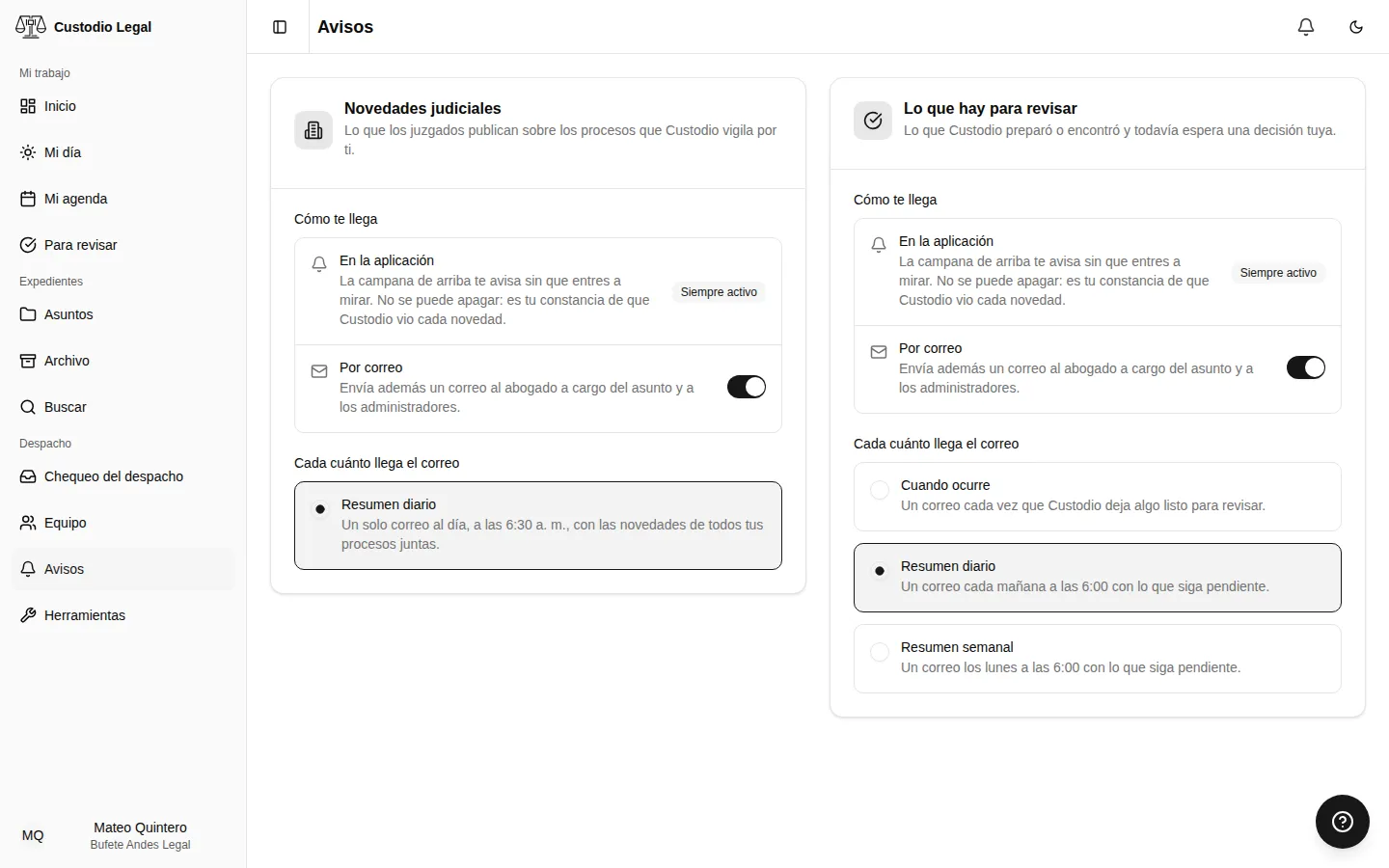
- From the practice menu, open «Alerts» to decide how judicial updates and review pending items reach you.
- For each type, turn email on or off. Judicial updates arrive in a single email a day, at 6:30 a.m., with all your matters together; for what there is to review you choose how often: as soon as it happens, or in a digest.
How you know it worked
The bell’s count drops when you open an alert, and «Saved» appears next to the switch you just changed.
If something goes wrong
| What you see | What happened | What to do |
|---|---|---|
| «Not available» next to an alert type | Your plan does not include that feature | Skip that alert, or talk to your practice about the plan |
| You can’t open «Alerts» | That screen is only for the practice owner | Ask the owner to configure it |
| No alert shows up to configure | Your practice hasn’t generated anything that produces alerts yet | Wait for the first judicial update or the first review item |